Billing & Finance

Student Billing, From Charge to Collection

Manage student fees, payments, subscriptions, balances, and financial activity in one connected workflow. openSIS gives administrators the tools to manage billing while giving students and families a clear view of what they owe and what they have paid.
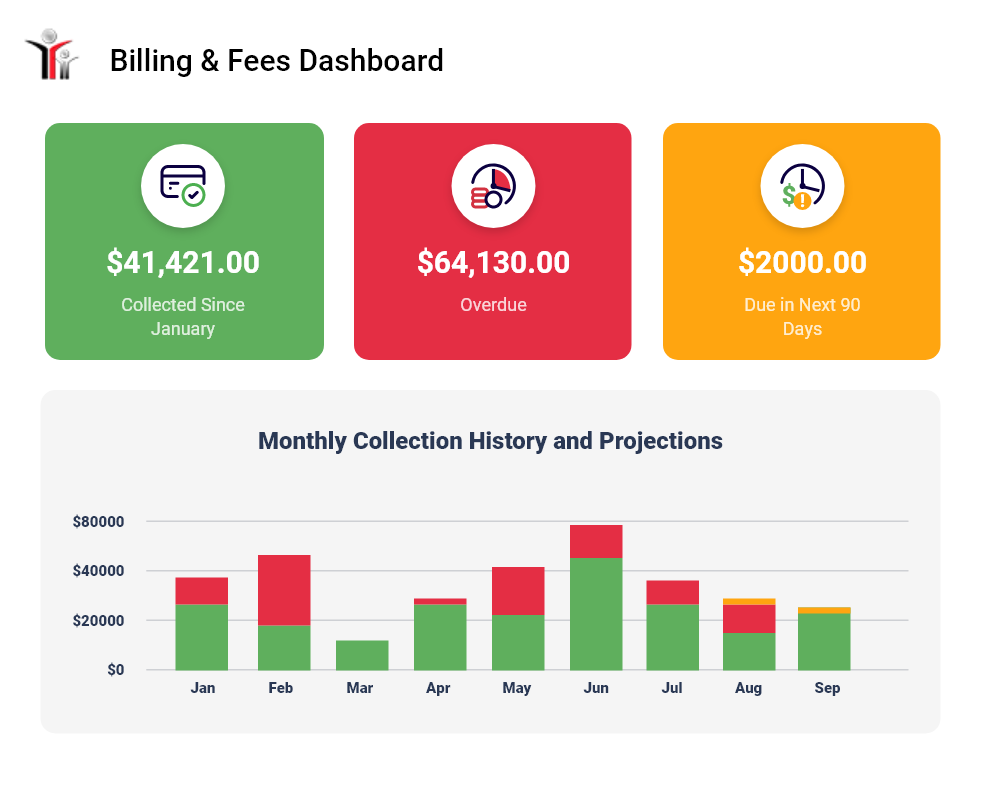
Billing & Fees Dashboard showing $41,421.00 collected since January in green, $64,130.00 overdue in red, and $2,000.00 due in next 90 days in orange. Below is a bar chart titled Monthly Collection History and Projections showing monthly collections and overdue amounts from January to September. Each month has stacked bars with green for collected, red for overdue, and orange for amounts due soon, with values on the vertical axis ranging from $0 to $80,000.

One Connected Flow for Student Billing

Student billing involves more than collecting a payment. A charge needs to be assigned, communicated, collected, recorded, and tracked. openSIS keeps that entire process connected.

1
Assign Fees

Create and assign fees to individual or multiple students.

2
Create Invoices

Generate invoices with charges, due dates, and discounts.

3
Collect Payments

Accept online payments or record manual payments.

4
Track Balances

View balances, unpaid charges, and transaction history.

5
Manage Subscriptions

Set up recurring fees with flexible billing cycles.

6
Send Money Requests

Request payment for specific items from students or parents.

7
Monitor Collections

Track collections, overdue amounts, and upcoming dues.

8
Keep Everyone Informed

Students and parents can view billing information from their portal.

Smiling man with dark hair and glasses wearing a navy blazer and light blue shirt, resting his chin on his hand.

"Administrators can manage financial activity without maintaining disconnected records, while students and families can see their billing information directly from their portal."
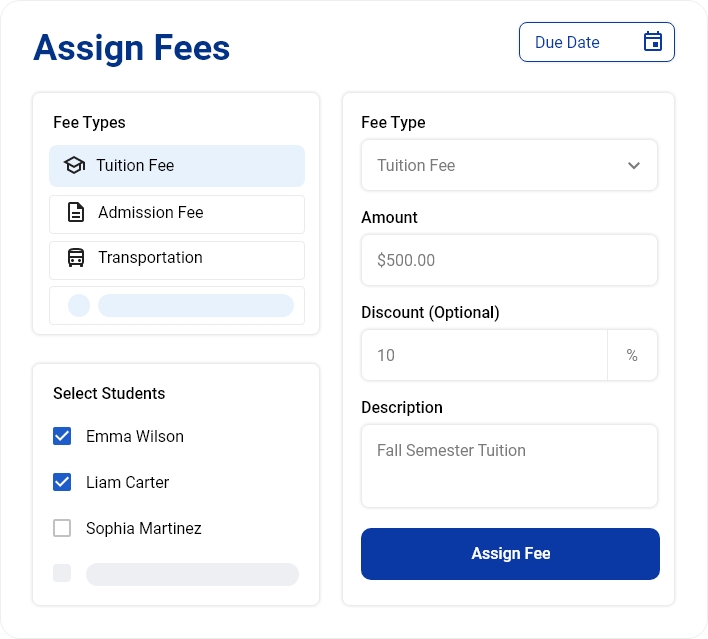

User interface for assigning fees with sections for selecting fee types including Tuition Fee, Admission Fee, and Transportation. Two students, Emma Wilson and Liam Carter, are selected. The fee type is Tuition Fee with an amount field showing $500.00, an optional discount field set to 10%, and a description box stating Fall Semester Tuition. A blue button labeled Assign Fee is at the bottom right.Notification box with a green checkmark icon on the left and the message 'Fees assigned successfully' in bold black text, followed by '2 students selected' in gray text.

Assign the Right Charges to the Right Students

Not every student needs to be billed the same way.

Administrators can assign fees to individual students or multiple students at once, select different fee types, set quantities and amounts, establish due dates, and apply discounts when needed.

Multiple fee types can be included in the same transaction, giving institutions the flexibility to manage everything from admission and academic fees to other student-specific charges.

One-Time Fees or Recurring Subscriptions

Some charges happen once. Others happen again and again.

Along with individual fees, openSIS lets institutions assign recurring subscriptions to students. Administrators can define the subscription amount, billing frequency, and maximum billing cycle, making recurring charges easier to manage alongside regular student fees.

Students can view their assigned subscriptions from their own portal and start the subscription when required.
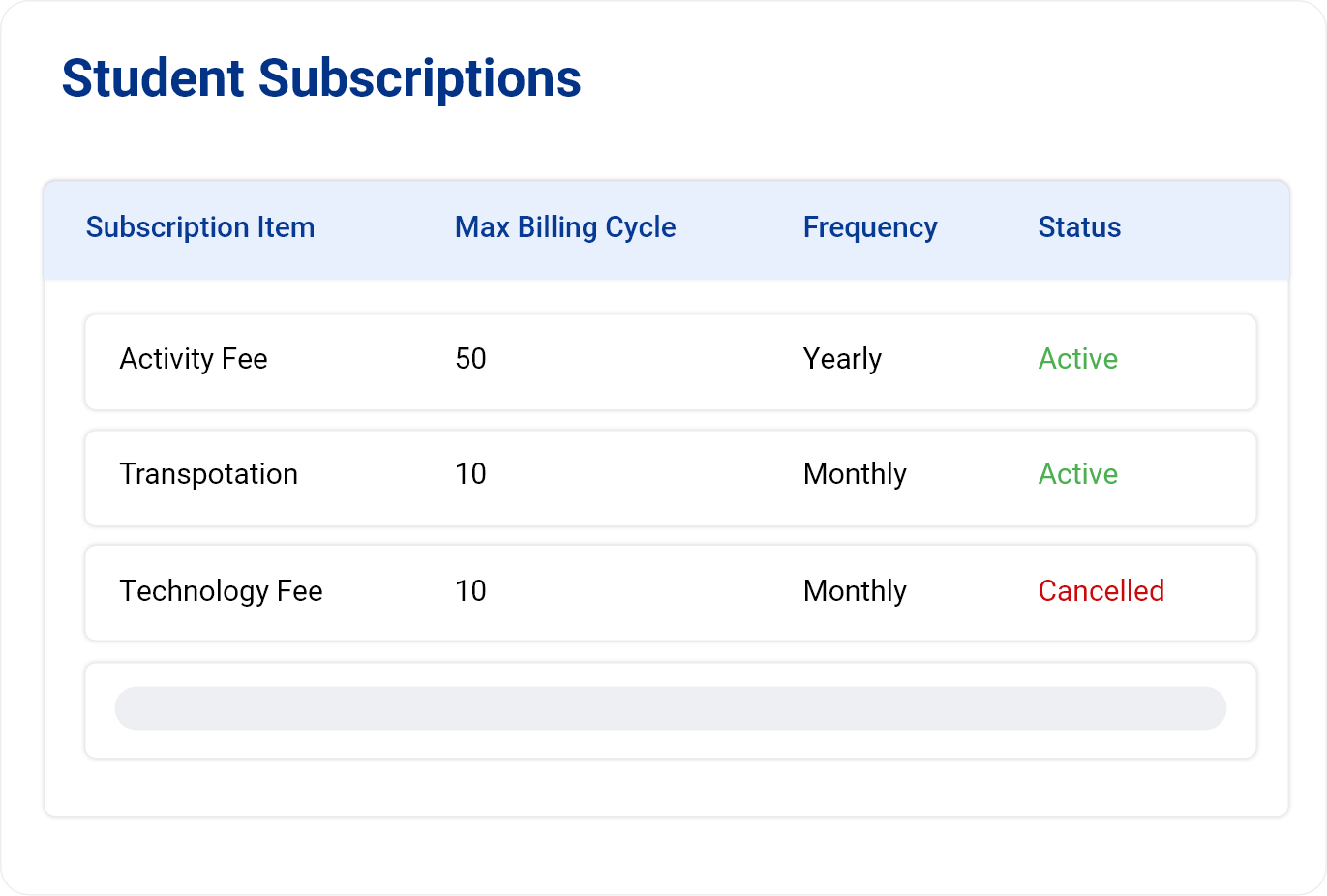
Table titled Student Subscriptions listing subscription items with max billing cycle, frequency, and status. Activity Fee has a max billing cycle of 50, yearly frequency, and status Active. Transpotation has a max billing cycle 10, monthly frequency, and status Active. Technology Fee has max billing cycle 10, monthly frequency, and status Cancelled in red.Blue circular arrow icon with two arrows forming a cycle, accompanied by the text: 'Recurring Subscription' in bold and 'Set it once. We'll handle the rest.' in lighter gray.
Request Money form with a Fee Type dropdown set to Activity Fee, Amount set to $25.00, an empty Due Date field with calendar icon, Description field containing 'Field trip to the Science Museum', and a blue Request Money button. On the right, a Select Students list with checkboxes next to Emma Wilson and Liam Carter checked, and Sophia Martinez unchecked.Orange circular icon with a white dollar sign inside, next to text reading: Collect payments for any fee, anytime.

Request Money When You Need It

Need to collect payment for a specific item?

Administrators can send a money request for an individual fee with an amount, description, and due date. The payment request can be sent to the student's associated parent or directly to the student, giving institutions a simple way to collect specific payments without creating a complicated billing process.

Give Students and Families a Clear Financial Picture

Students shouldn't have to ask the office every time they want to know what they owe.

From their openSIS portal, students can see:

Green check icon

Total fees and payments

Green check icon

Current balance due

Green check icon

Unpaid charges

Green check icon

Invoices

Green check icon

Money requests

Green check icon

Transaction ledger

Green check icon

Assigned subscriptions

Green check icon

Available fund deposits

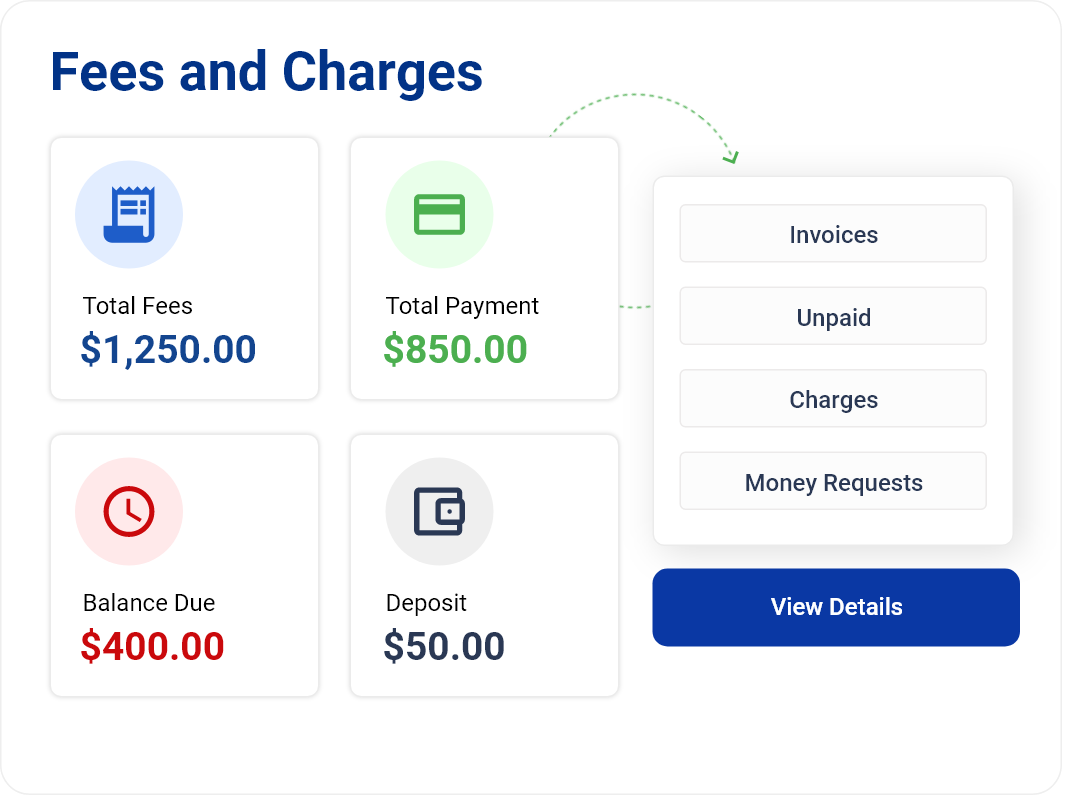
Dashboard titled Fees and Charges showing four finance summary boxes: Total Fees $1,250.00 in blue with receipt icon; Total Payment $850.00 in green with credit card icon; Balance Due $400.00 in red with clock icon; Deposit $50.00 in dark blue with wallet icon. Next to these is a box with options Invoices, Unpaid, Charges, Money Requests and a blue View Details button below.Icon of a smartphone with a checkmark, alongside text stating that billing information is accessible through the openSIS mobile app to help students and families stay informed.
Payment methods options with icons and descriptions: Visa with a card icon, Mastercard with the Mastercard logo, and Cash with a dollar bill icon, each followed by instructions to pay securely or in person at the school office.Red credit card icon with a green shield and checkmark, next to text that reads: Multiple Payment Options. Save, Secure & Convenient.

More Flexibility in How Payments Are Handled

Institutions can accept both online and manually recorded payments, keeping different types of collections within the same student billing workflow.

Students can also maintain a fund deposit in their account and use available funds toward their charges, providing another way to manage payments.

For institutions that want students and families to pay electronically, openSIS connects billing with integrated online payment options.

See What Has Been Collected—And What Is Still Due

The Billing & Fees dashboard gives administrators an immediate view of their institution's financial activity.

Track amounts collected, overdue balances, and upcoming dues while viewing collection trends over time. Administrators can also analyze collections by fee type and payment method and monitor overdue amounts by aging period.

It turns everyday billing activity into a clearer picture of where collections stand and what needs attention.
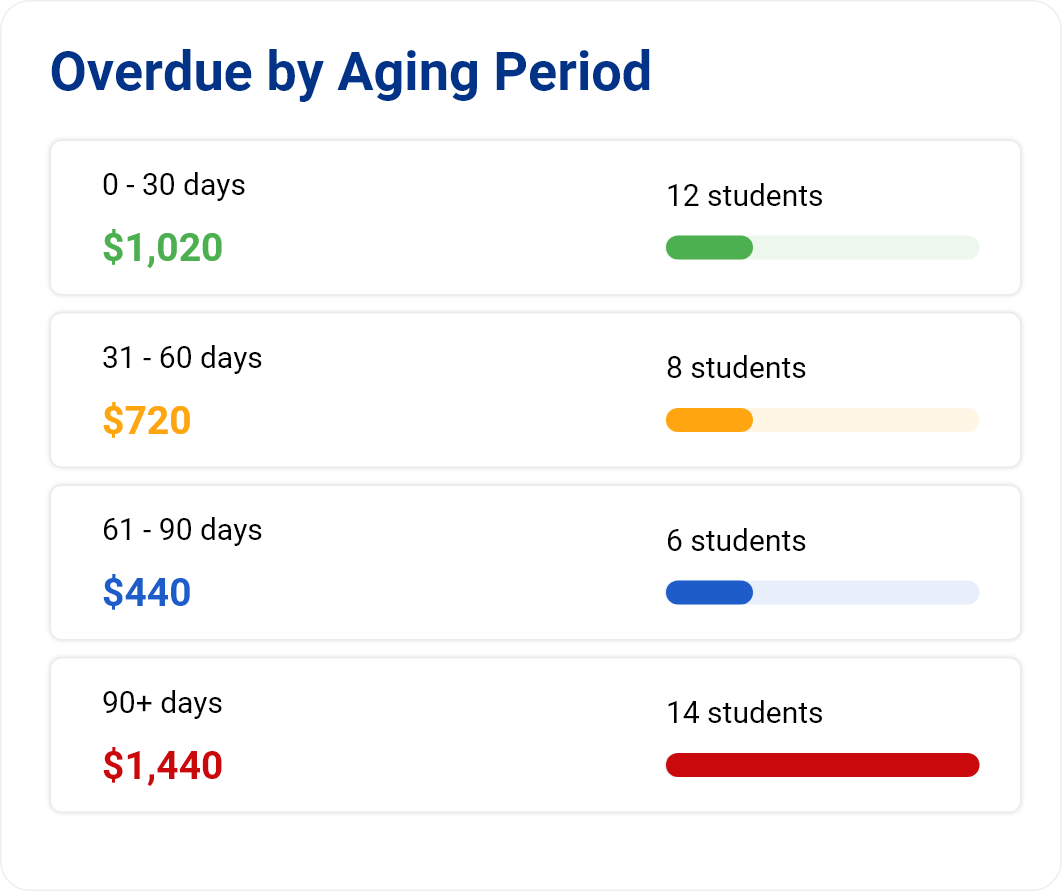

Chart titled 'Overdue by Aging Period' showing overdue amounts and number of students in four aging periods: 0-30 days with $1,020 overdue and 12 students, 31-60 days with $720 overdue and 8 students, 61-90 days with $440 overdue and 6 students, and 90+ days with $1,440 overdue and 14 students, each period represented with a colored progress bar.Icon of a document with a bar chart and a magnifying glass with a dollar sign, next to text saying Identify overdue balances early and keep your collections on track.

Billing that stays connected to the student

Fees, invoices, payments, subscriptions, money requests, deposits, and balances all remain connected to the student's record.

Simpler billing for your staff. Clearer finances for your families.